
Rethinking the Report Center Experience
From a buried list of 200+ reports to a personal workspace with folders, live previews, saved setups, and scheduling. Built for the way professional services firms actually work.
Team
Product Manager, Stake Holders, Engineering
Role
Product Designer (Lead)
Platform
BQE CORE Web App
Module
Reporting & Analytics
01 - Overview
200+ standard reports, and most users couldn't find the one they needed.
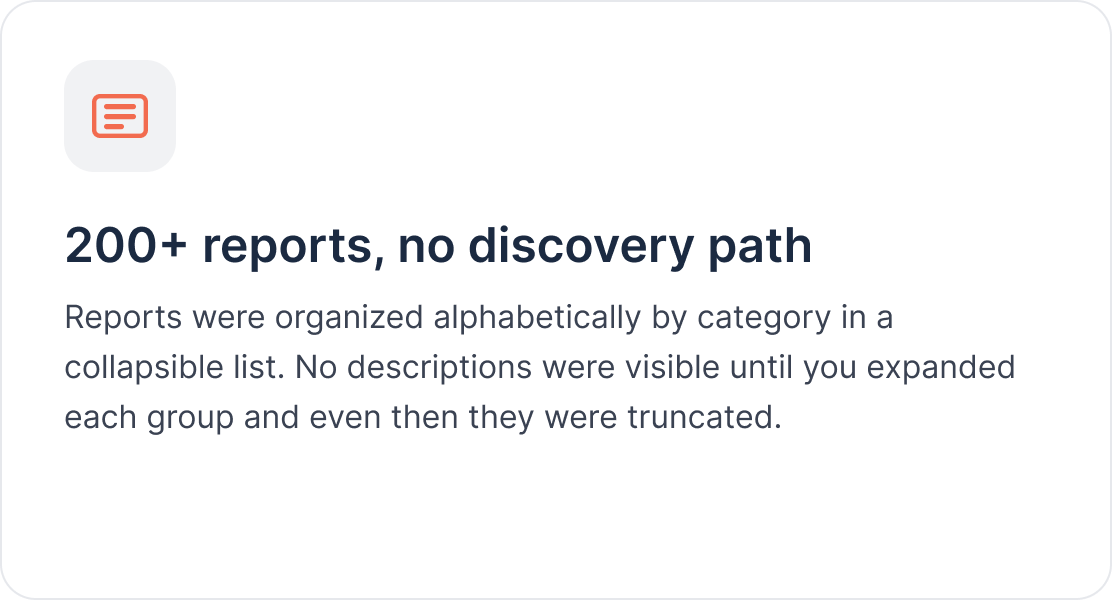
BQE Core serves architecture, engineering, and professional services firms. The Reports module was one of the oldest parts of the platform, and one of the most painful. It was a single list of report names grouped by category. No descriptions until you clicked. No preview of the output. No clear way to save a setup for next week.
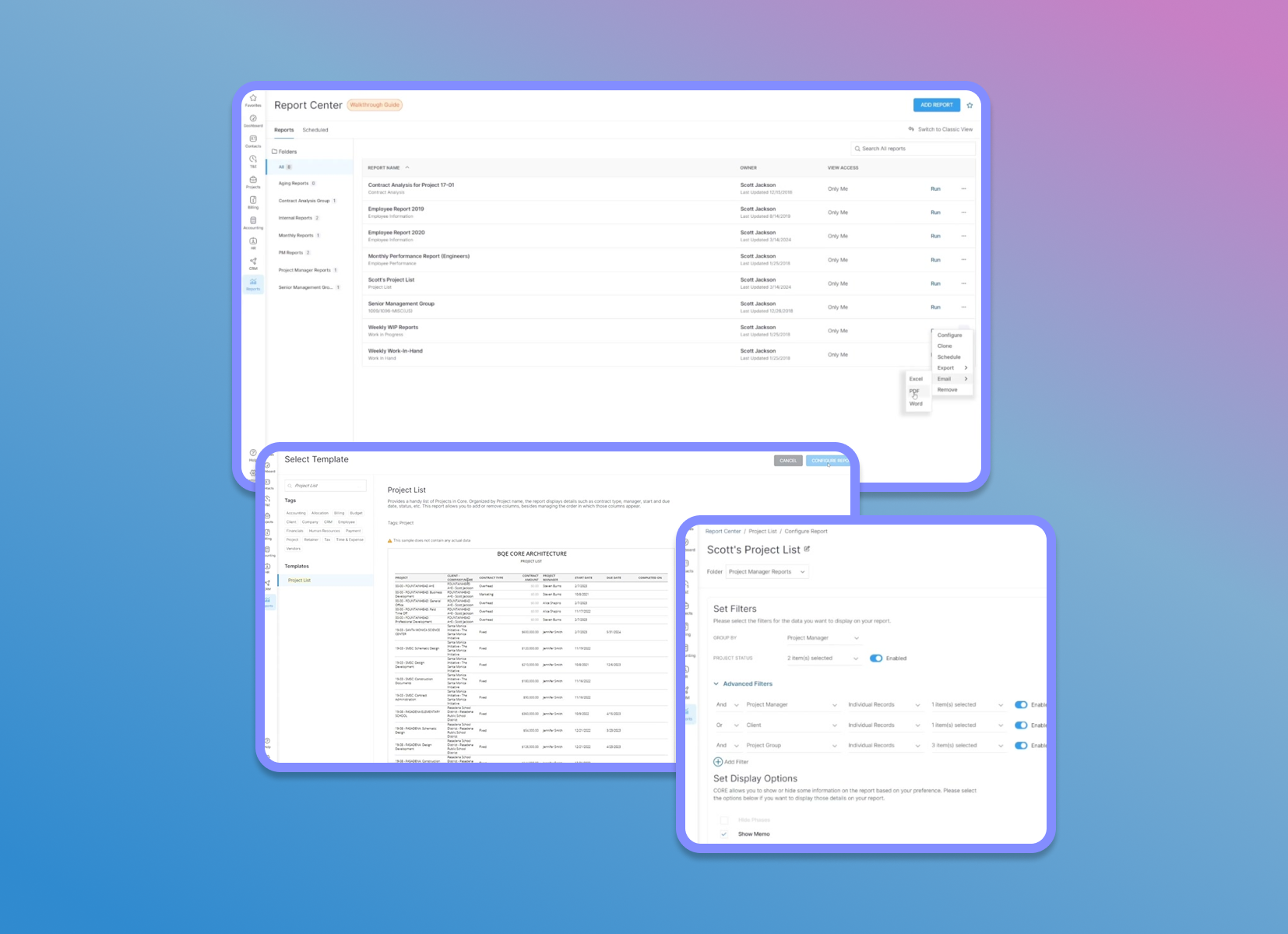
The redesign introduced the Report Center. A personal home built around folders, saved setups, template previews, and scheduled delivery. The old list stayed available for power users who wanted it
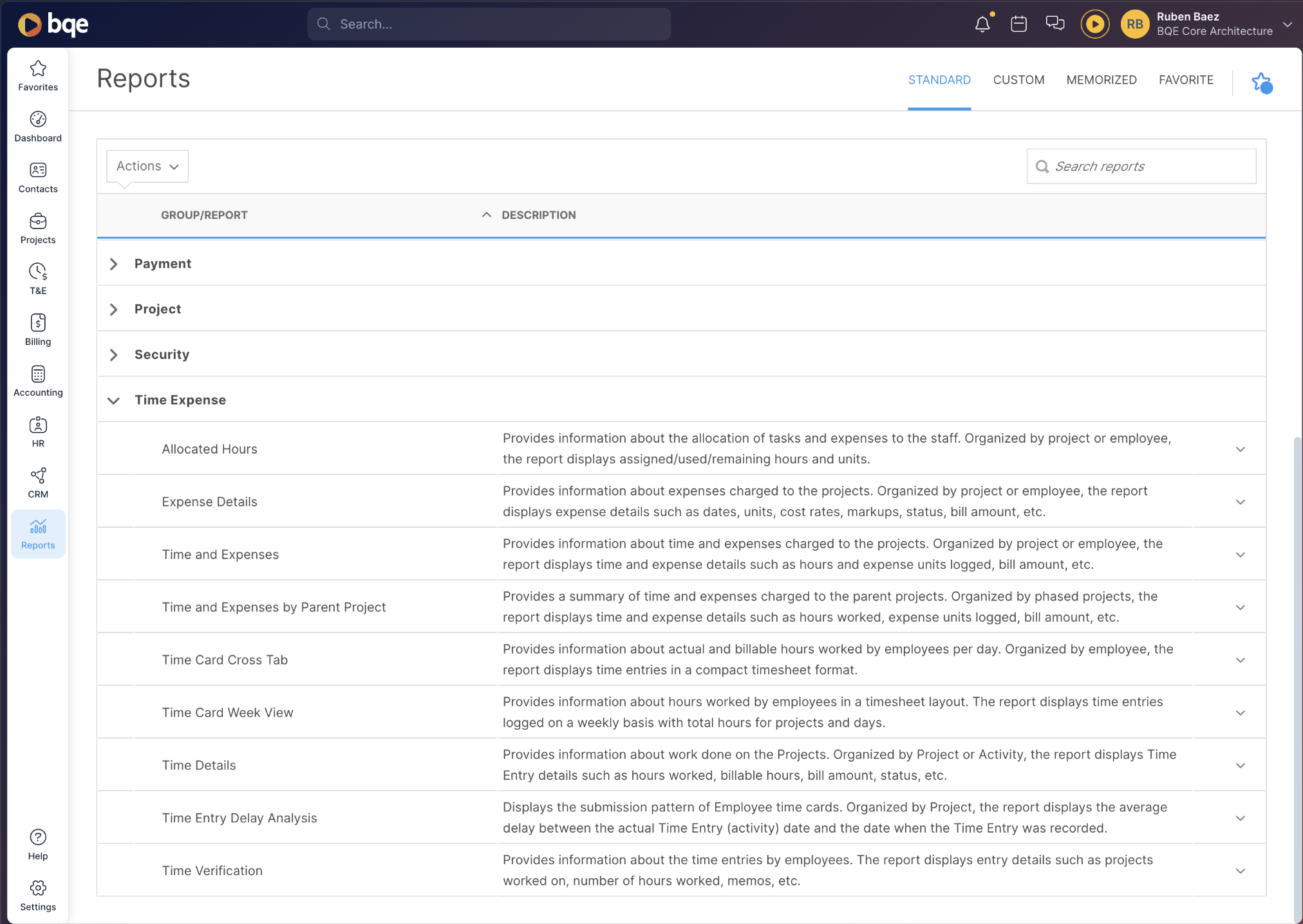
List of loosely categorized reports tucked into accordion grouping.
01 - Overview
200+ standard reports, and most users couldn't find the one they needed.
BQE Core serves architecture, engineering, and professional services firms. The Reports module was one of the oldest parts of the platform, and one of the most painful. It was a single list of report names grouped by category. No descriptions until you clicked. No preview of the output. No clear way to save a setup for next week.
The redesign introduced the Report Center. A personal home built around folders, saved setups, template previews, and scheduled delivery. The old list stayed available for power users who wanted it.
02 - The Problem
A report catalog that expected you to already know what you were looking for.
People ran reports all the time. Billing, project management, employee tracking, financial review. But finding the right report, setting it up, and getting back to it next week took real effort and memory. New hires couldn't figure it out. Even experienced users called it a chore in interviews. The support queue showed the same thing.
Before — standard list (collapsed)
14 category groups, sorted alphabetically. No descriptions, no previews, no saved setups. Users opened each group, read names, and guessed.
Before — expanded category with hover menu
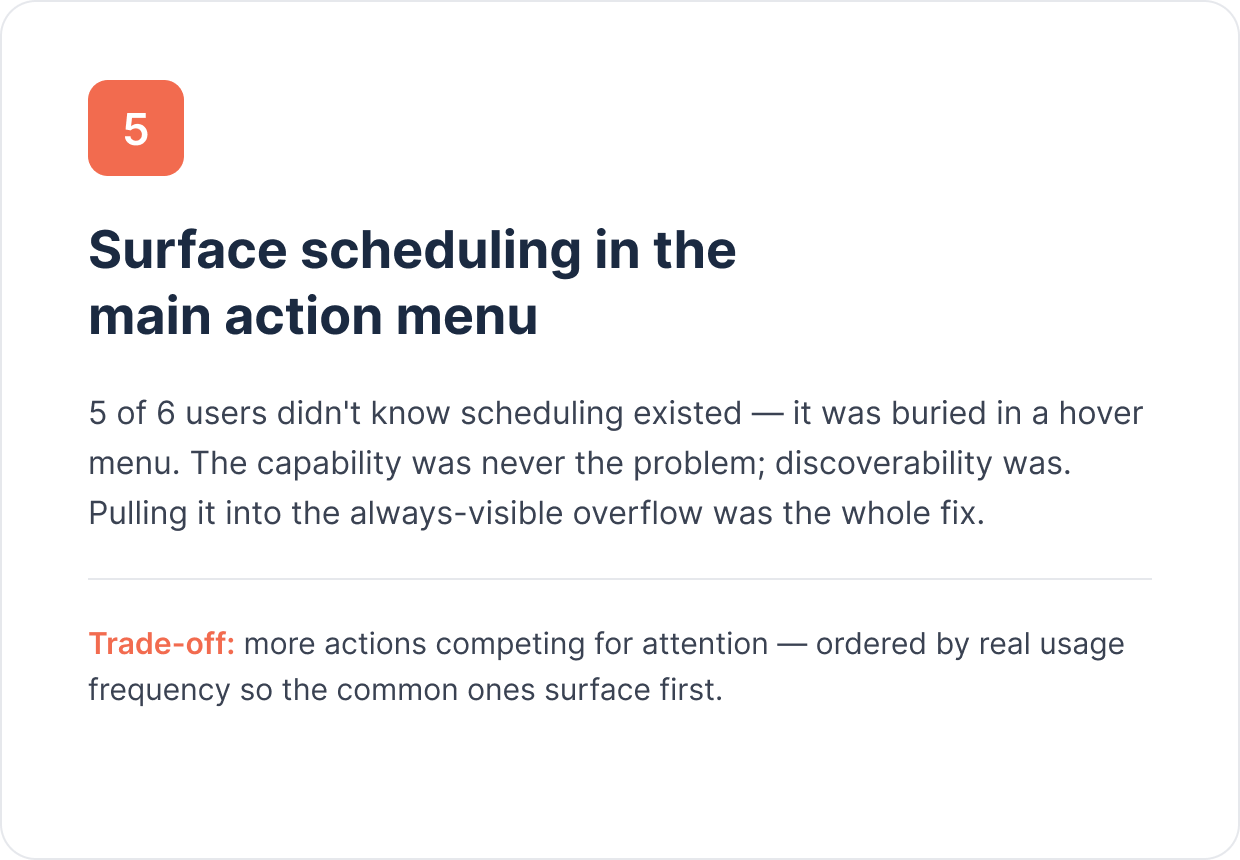
Opening a group showed names with cut-off descriptions. Memorize, Schedule, and Favorite were buried in a row menu most people never found.
03 - Research
Six user interviews, a support ticket audit, and a look at the usage data.
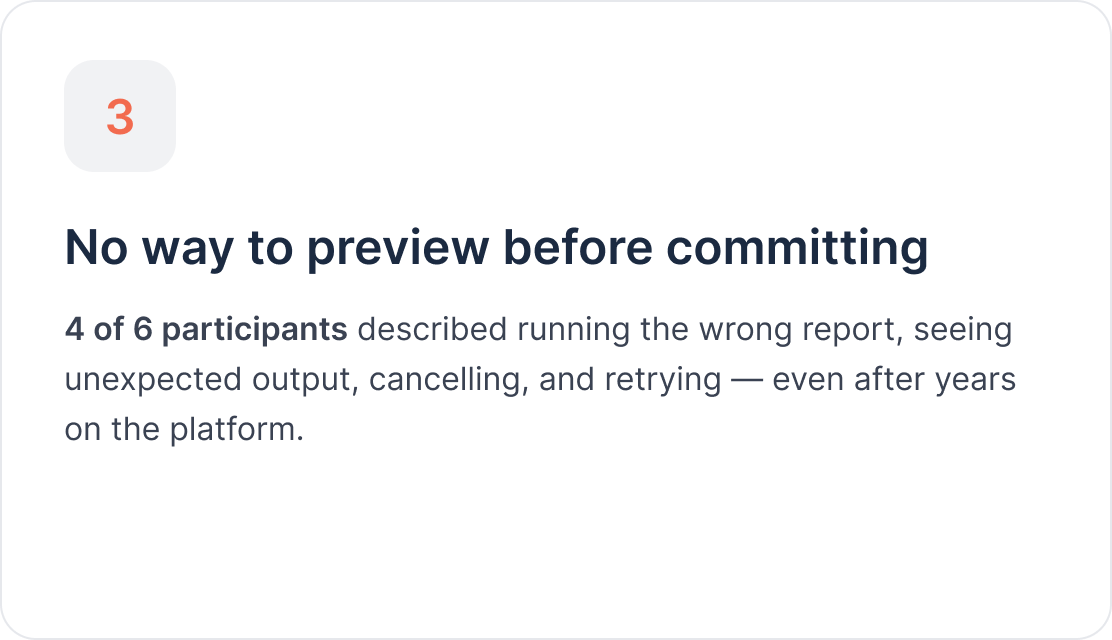
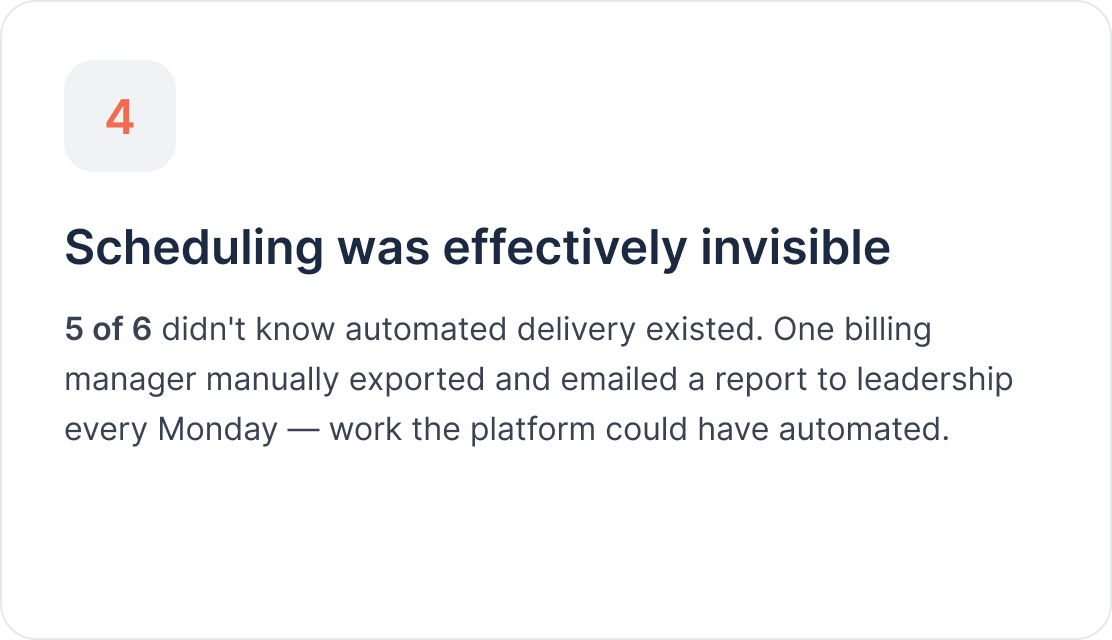
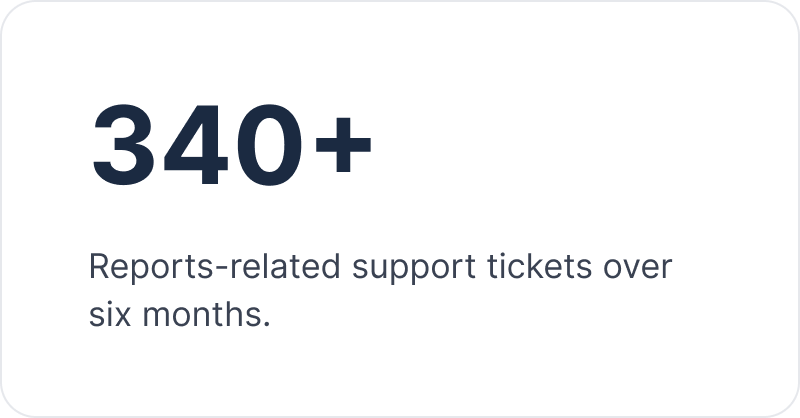
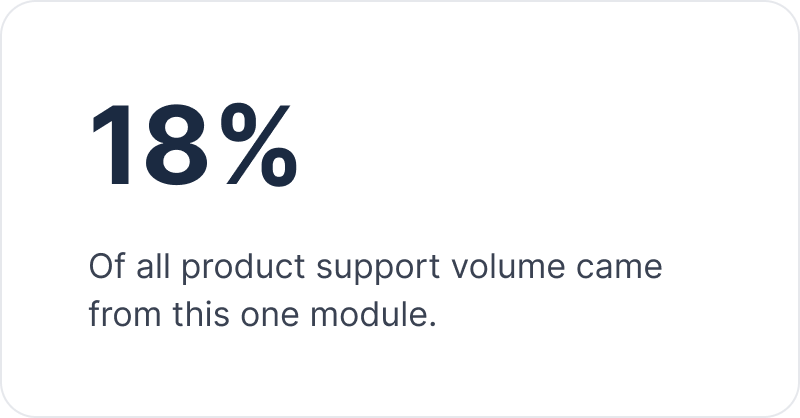
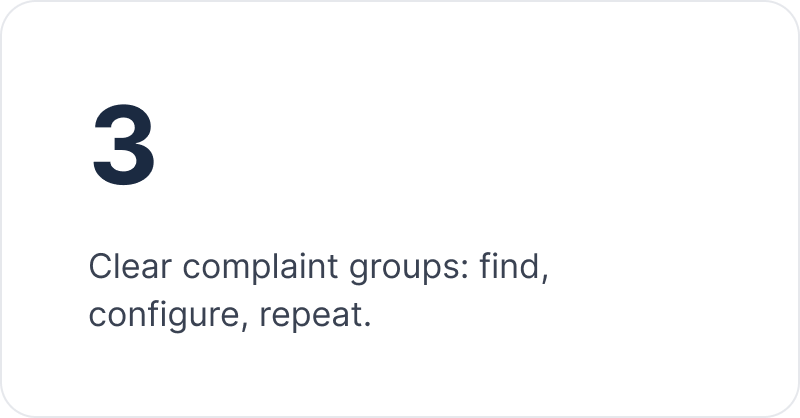
I started with the support queue. Filtering tickets in Productboard surfaced 340+ tickets over six months, about 18% of all product support volume. They fell into three groups: "I can't find the report I need," "I don't know how to set this report up," and "I run the same report every week and it's tedious."
With a product manager, I then ran six moderated interviews across firm types and roles. Two principal architects who report monthly, two billing managers who report weekly, and two project managers who report every billing cycle. Each session was a screen share of the person's real workflow.


04 - User Flows
Before and after: running a weekly report.
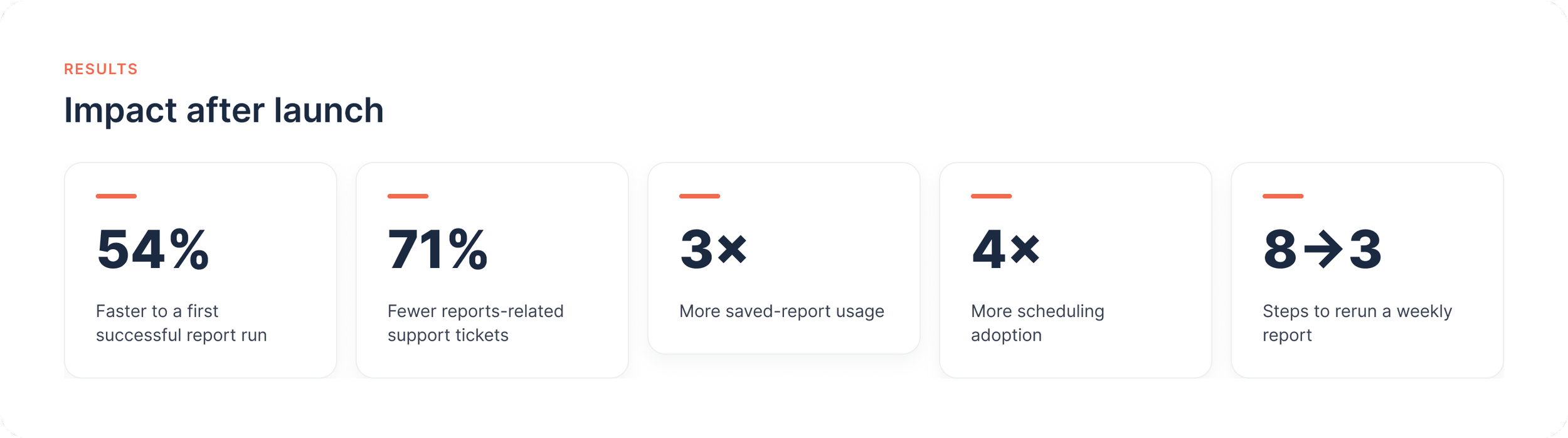
The old flow to run a saved report took 8 to 11 steps, with several points of confusion and backtracking. The redesign cuts that to 3 steps for a saved report, and 5 for a brand new one.
05 - Mid - Fidelity Exploration
Three directions, tested before a single hi-fi screen.
Before high fidelity, I tested three structural prototypes to answer the main open question: how should the 200+ standard templates relate to a person's own saved reports? These were two different problems, and might have needed two different surfaces.
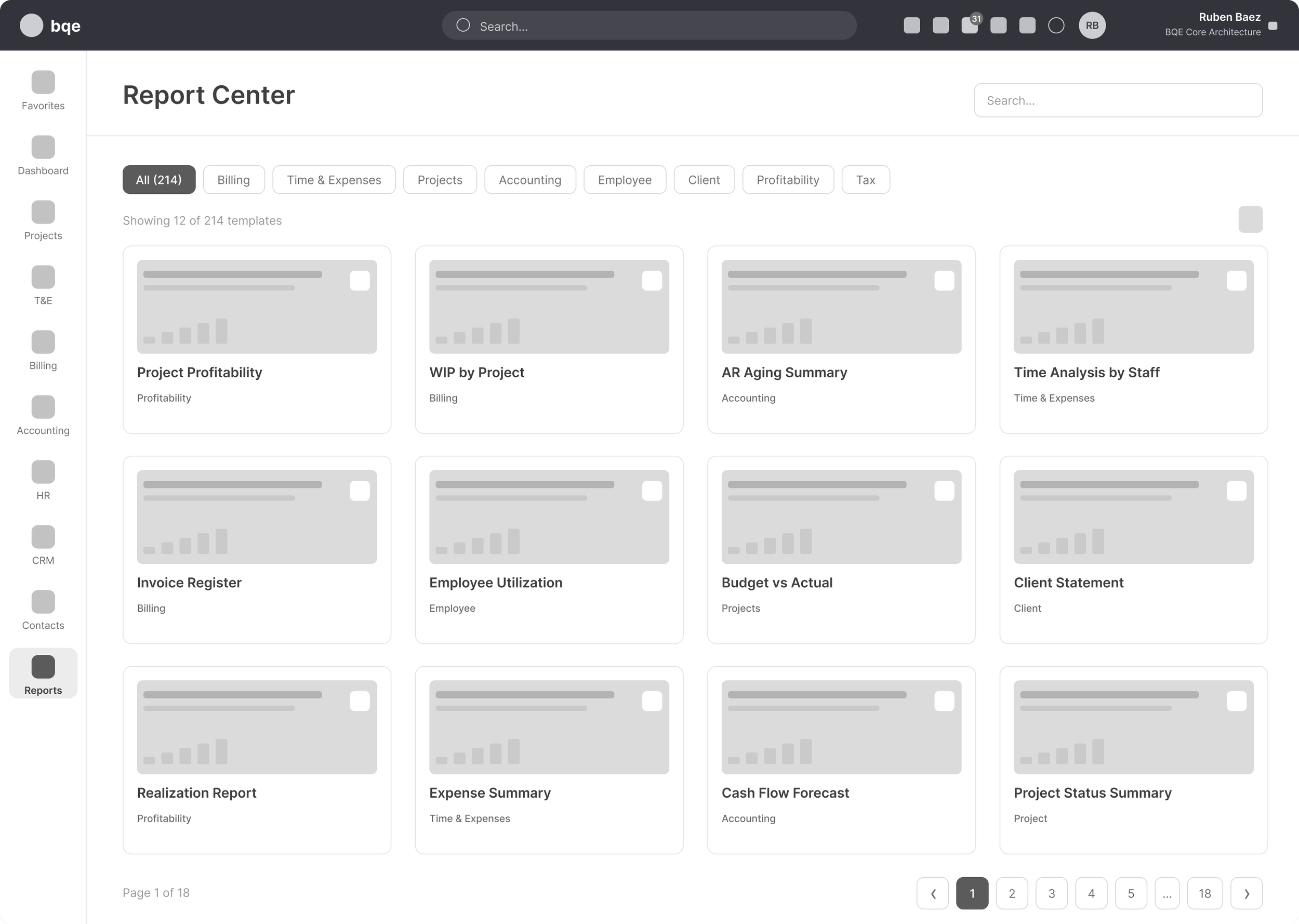
Card gallery landing page (Rejected)
All 200+ templates as cards with tag filters across the top. Tested well for first-time discovery, but felt overwhelming for returning users who already knew their workflow.
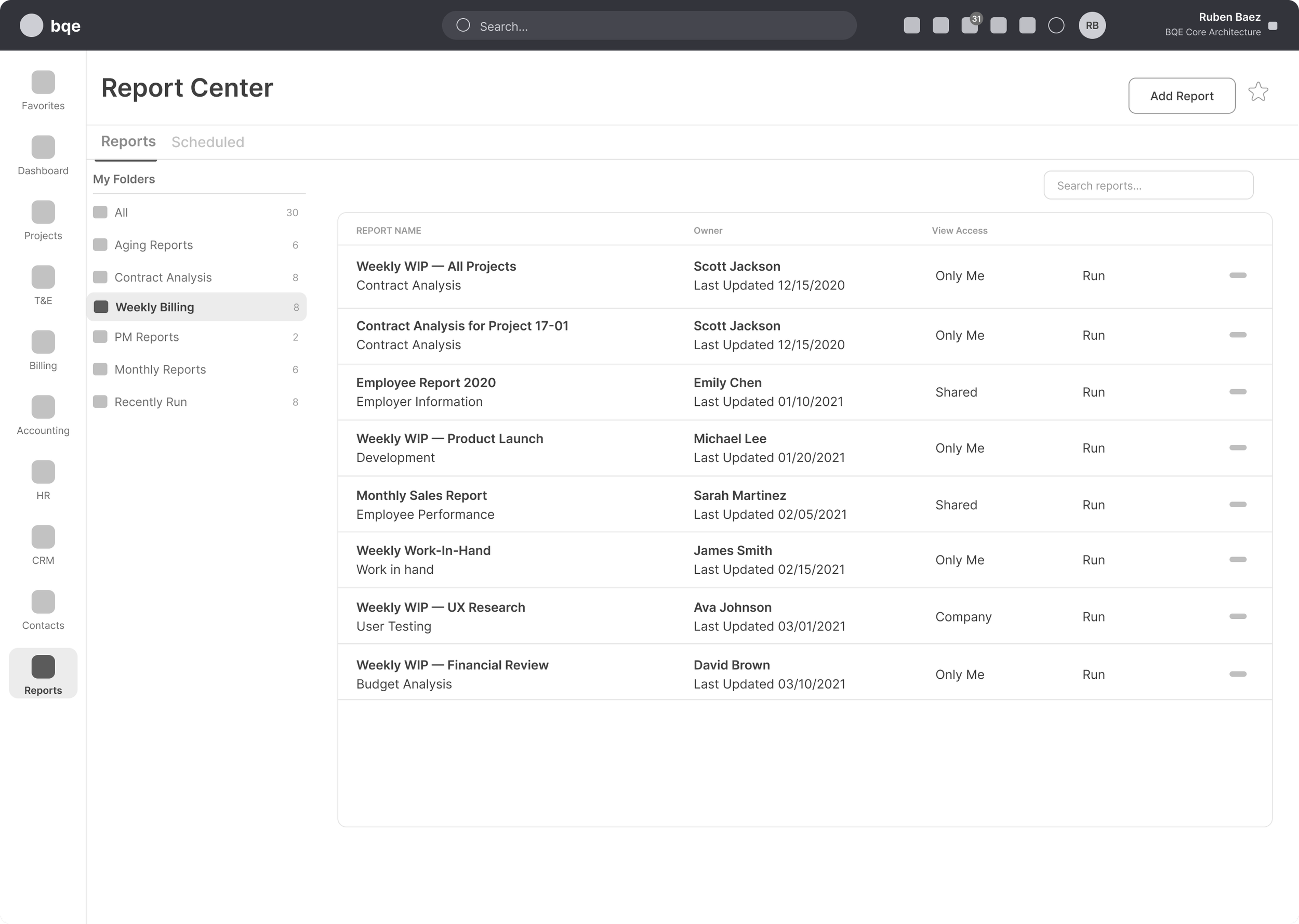
Unified two-tab approach (Selected for final)
My Reports and All Templates as two tabs. Folders on the left, list on the right. Kept personal work separate from the standard library. The split read clearly and matched how teams already think.
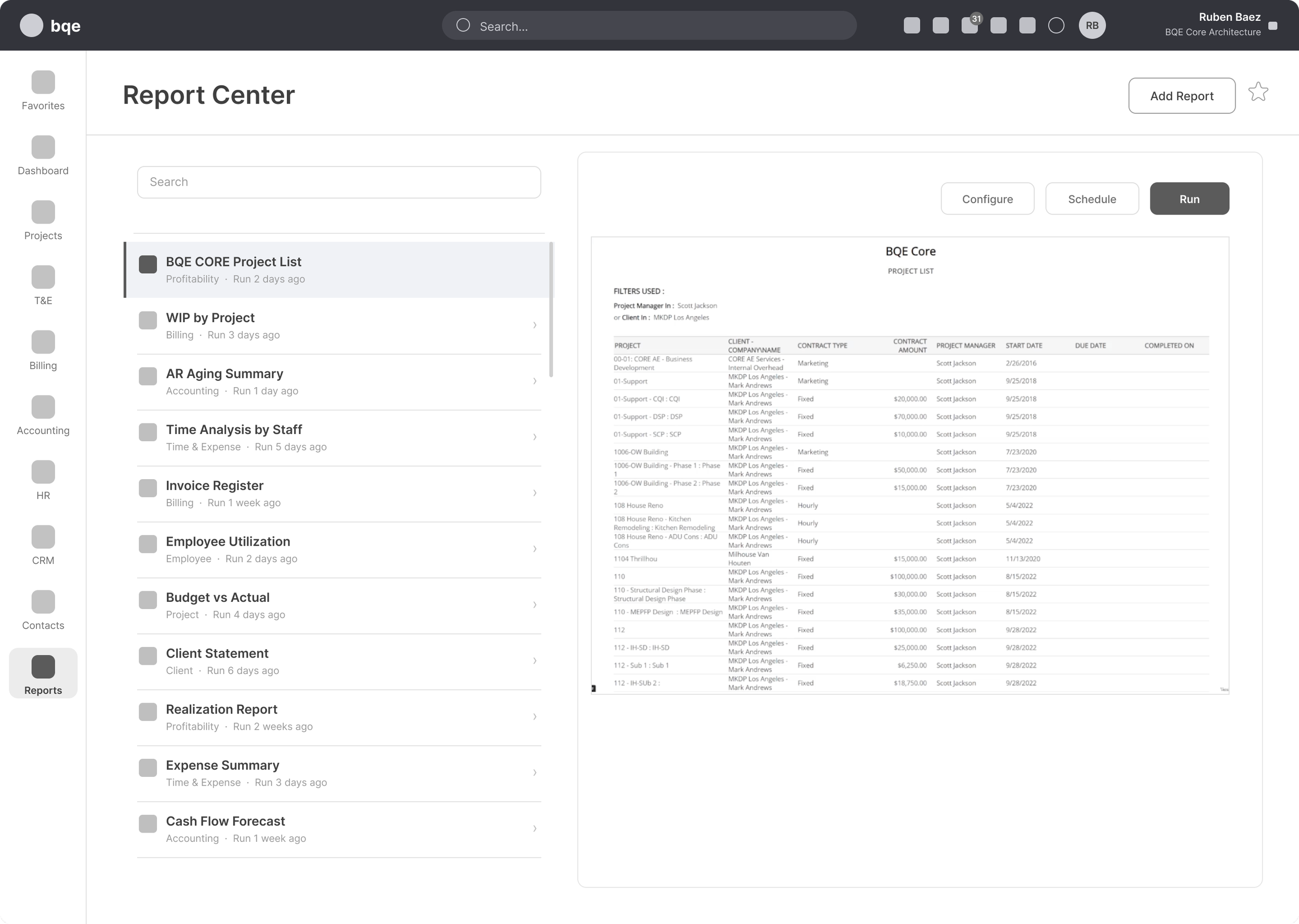
Split-pane explorer (Deferred)
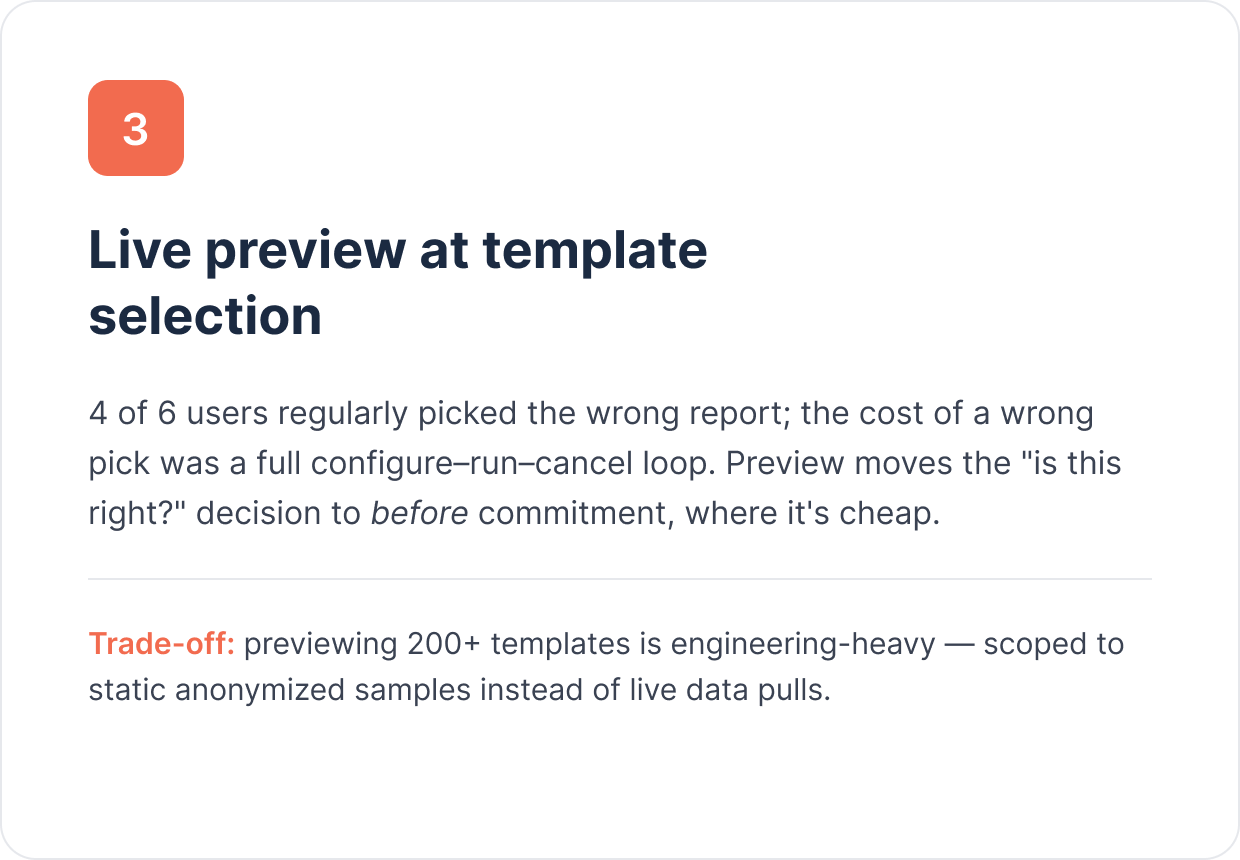
Report list on the left, live preview on the right that updated on hover. Tested with high delight, but too heavy to build in scope. The preview idea moved into the Select Template flow instead
06 - The Solution
The redesigned Report Center.
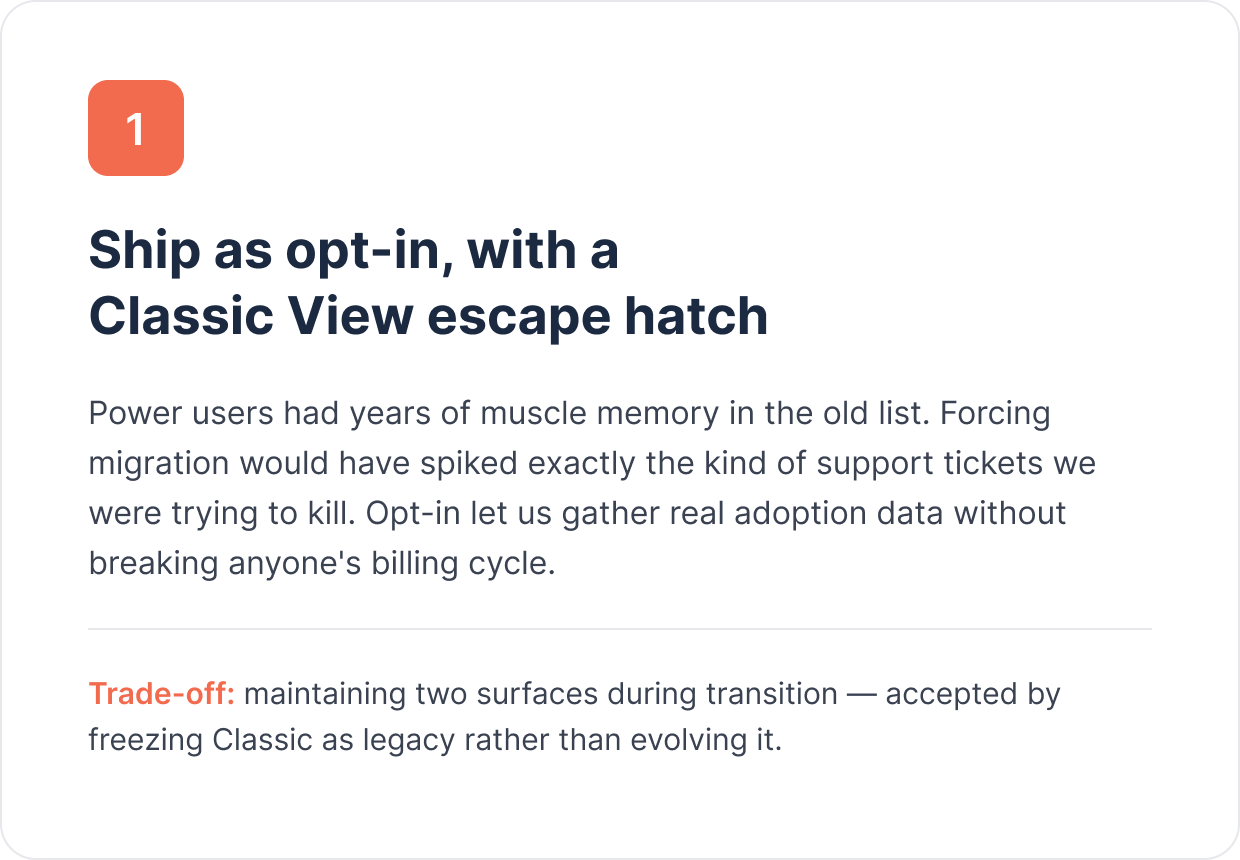
It shipped as an opt-in "New Experience" with a clear "Switch to Classic View" button, so people could move over at their own pace without breaking existing workflows. The work shipped in three milestones.

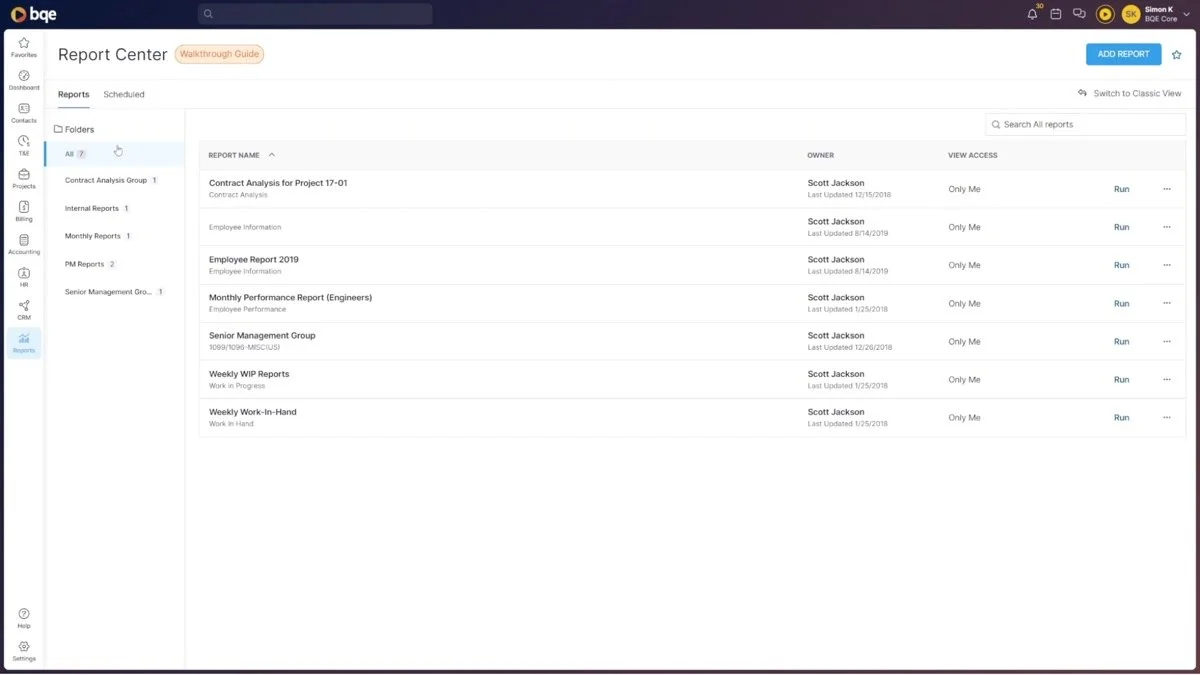
Home view and folders
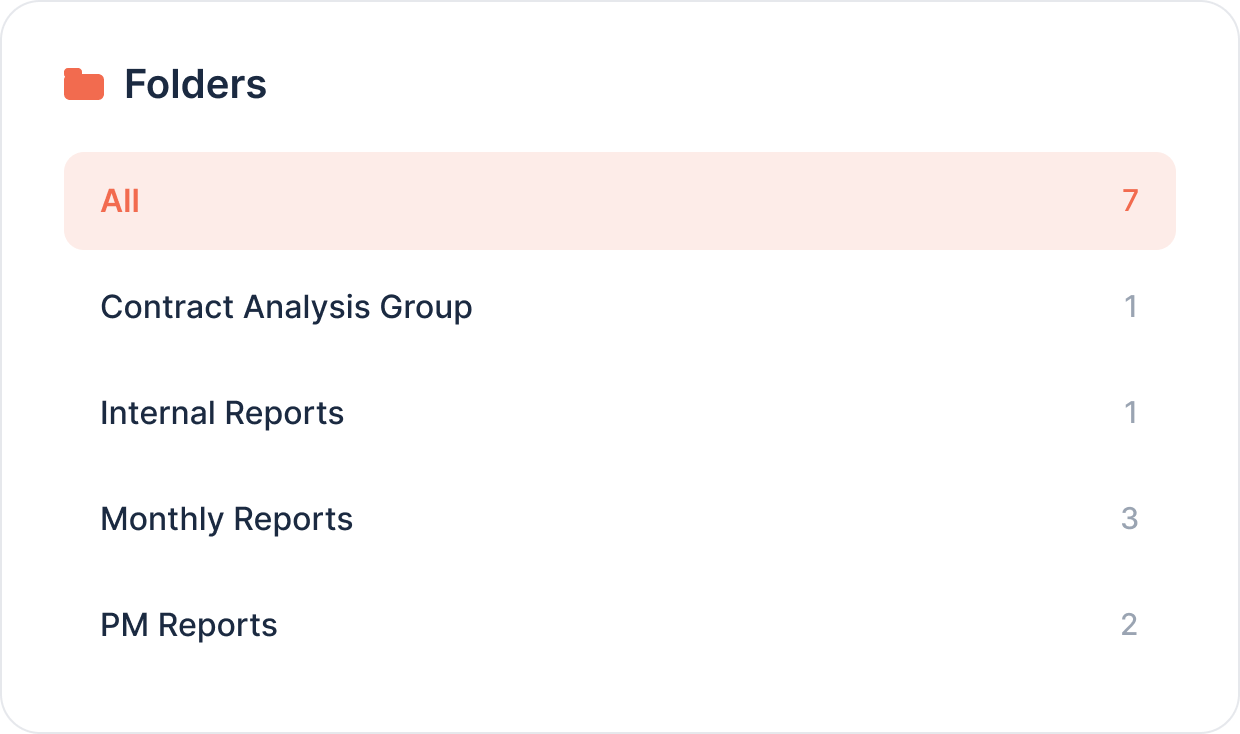
The folder sidebar filters by saved group. Name, template type, owner, last updated, and view access are all visible at a glance. Run is always one click away.
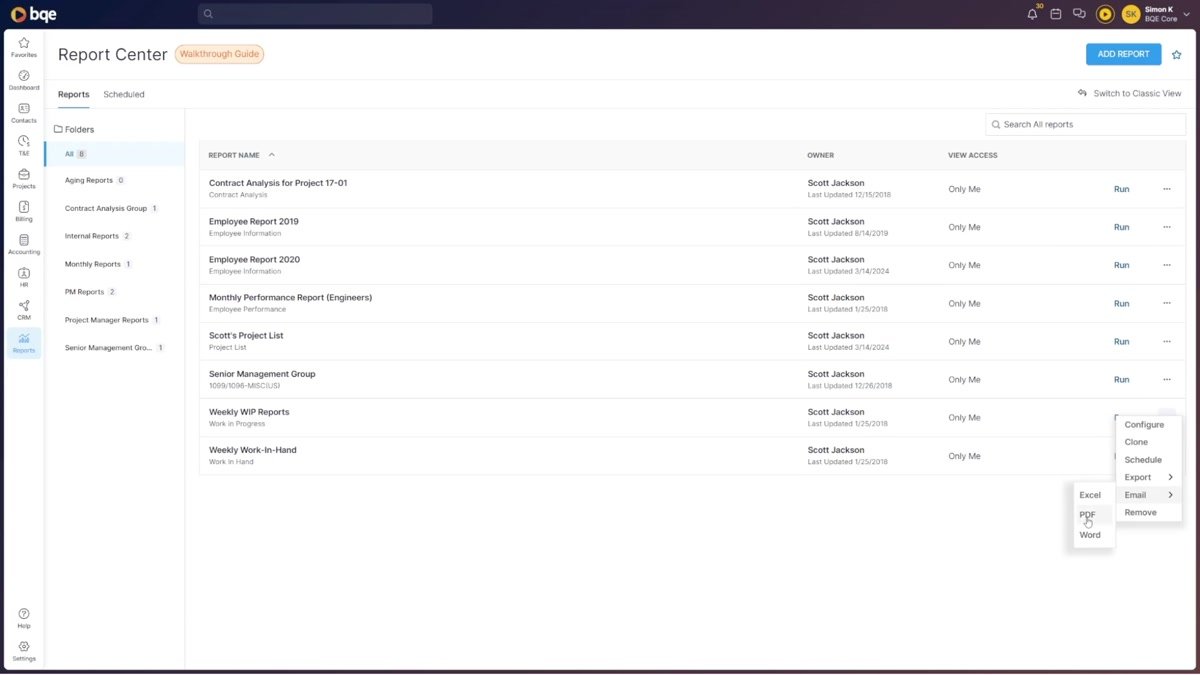
Report-level actions
Configure, Clone, Schedule, Export, Email, and Remove all sit in a visible menu. No hovering needed. Scheduling is right there, not hidden.
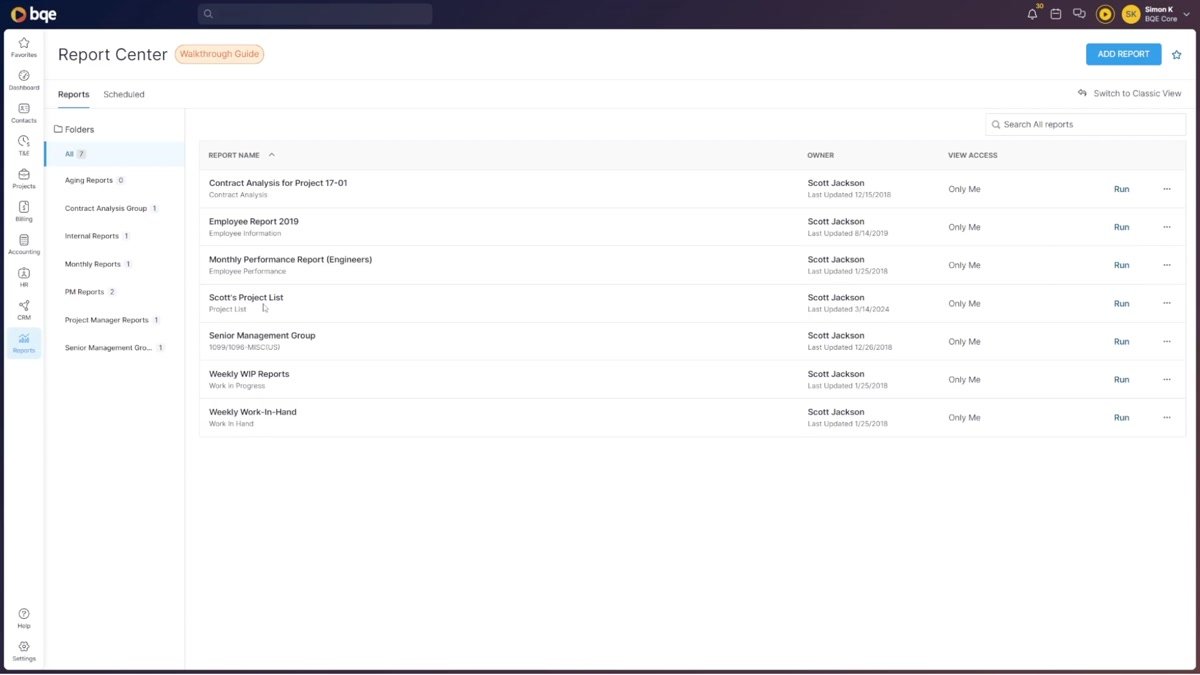
After saving a configured report
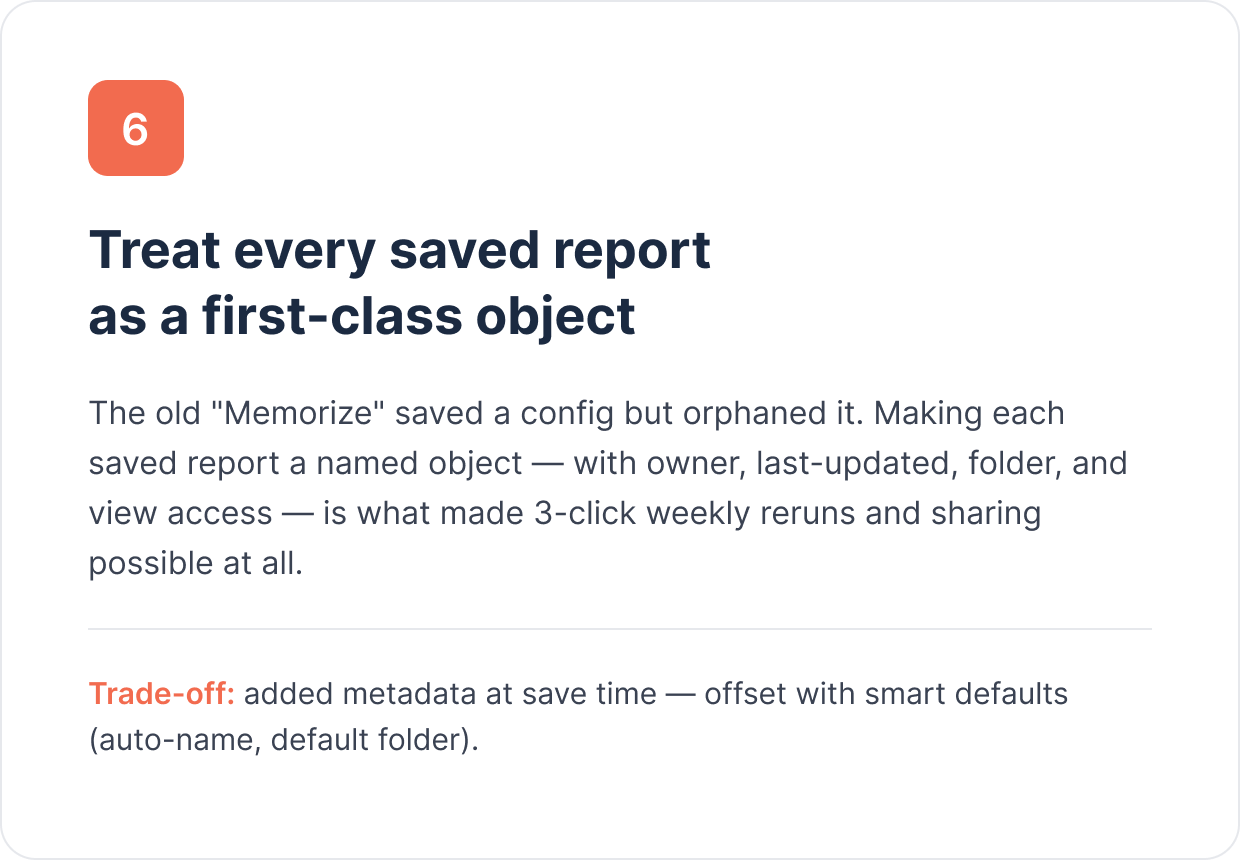
It shows up in the list right away with its folder, so there's no hunting to get back to it next week.
Select Template Flow
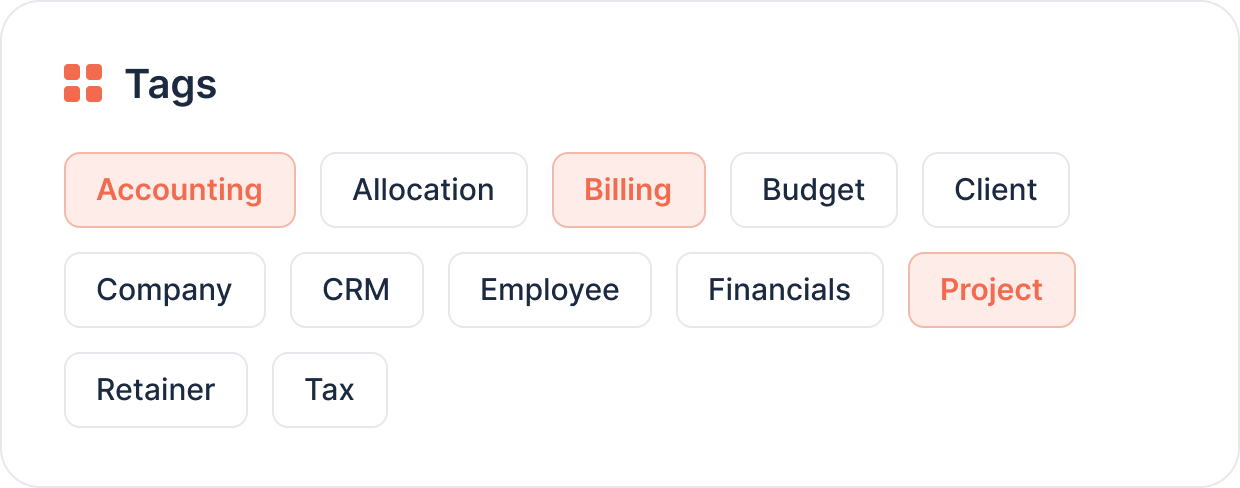
The template browser answers the "which report should I use" question. Tags on the left filter the list. Clicking a template shows a live sample preview, so you know what you're getting before you commit.
Configure Report
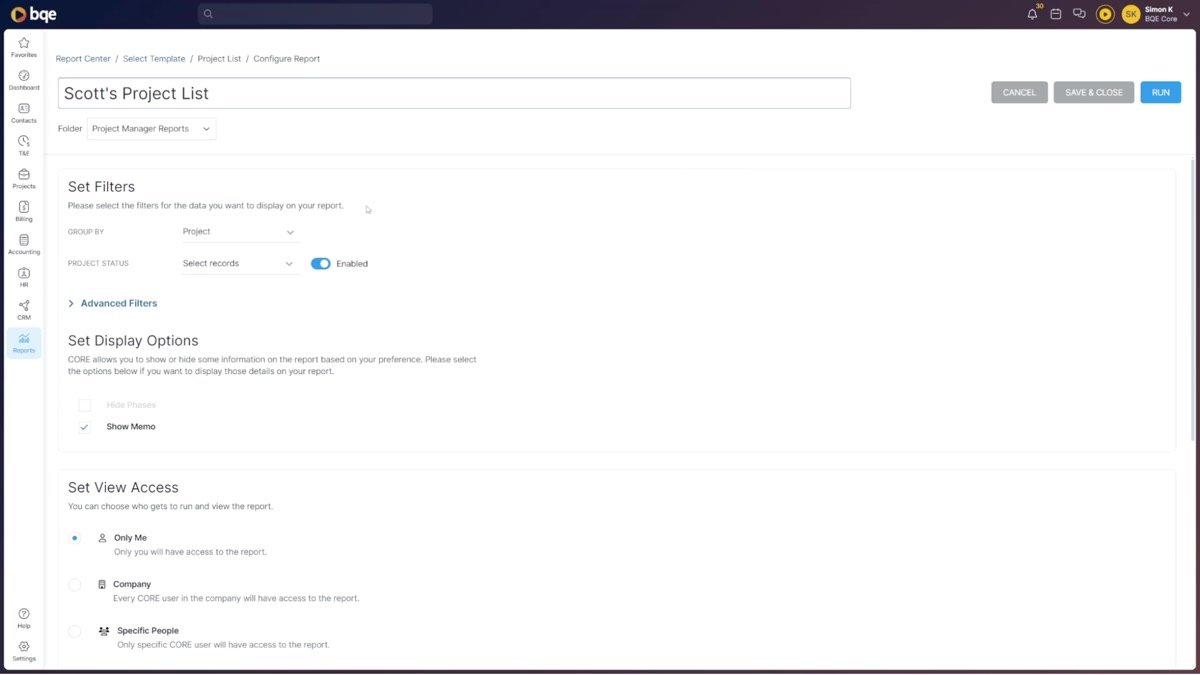
Configure gives each report a permanent name, a folder, and its filters, display options, and view access. All on one page, saved between sessions.
Basic configuration
Name, folder, Group By, and Project Status filters. Display options and View Access (Only Me, Company, or Specific People) finish the form.
Advanced filters
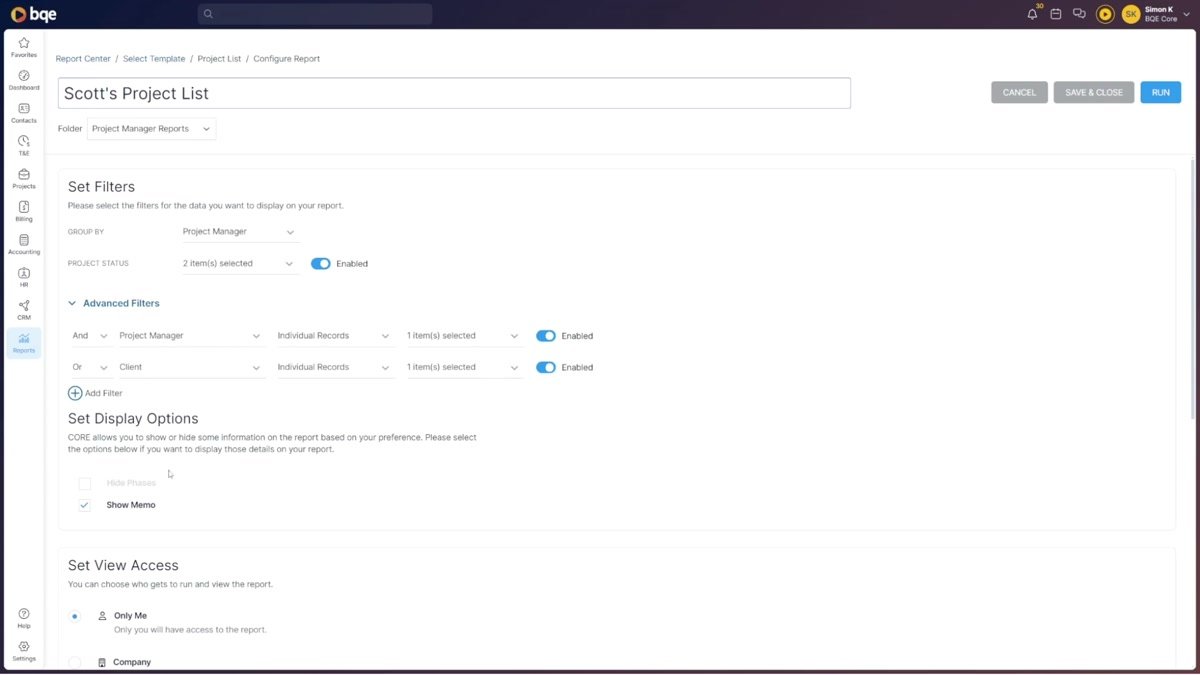
AND/OR logic, field selectors, record targeting, and per-filter toggles. All without leaving the page.
07 - Design Decisions
The key choices, and why I made them.
Each decision traces back to a specific research finding, and each came with a real trade-off worth naming.


08 - Video Walkthrough
Product video walkthrough.
A two-minute look at the full flow: finding a template, previewing it, setting it up and saving, and scheduling delivery.
09 - Outcomes
What changed, and how it was measured.
The baseline we measured against
Pulled from the support ticket audit and usage data before any design work started.
What changed after launch
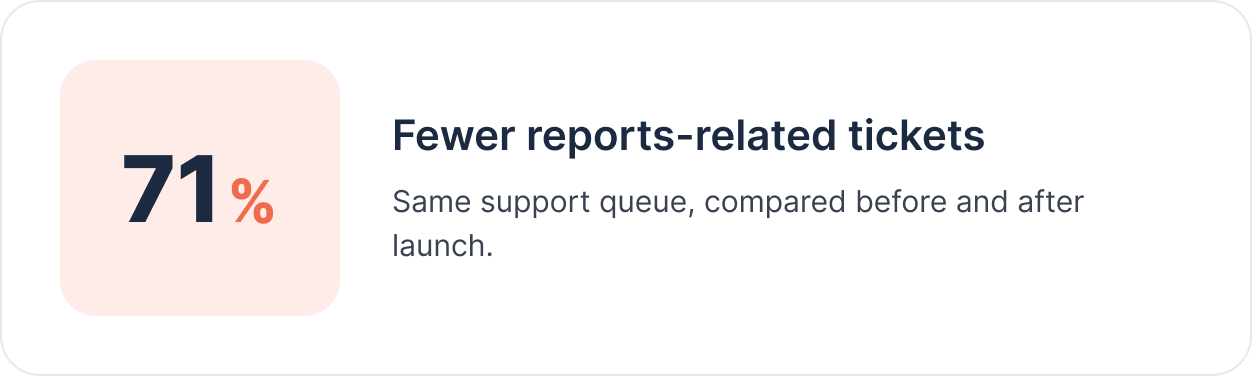
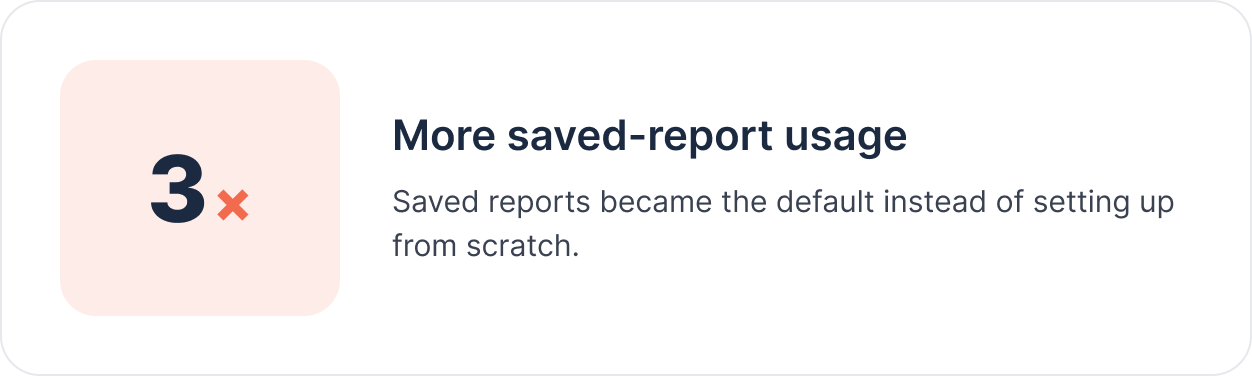
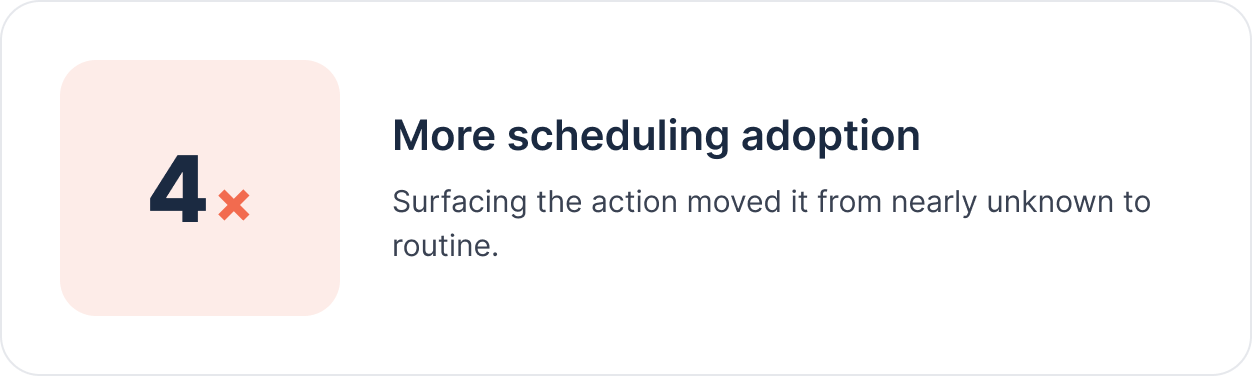
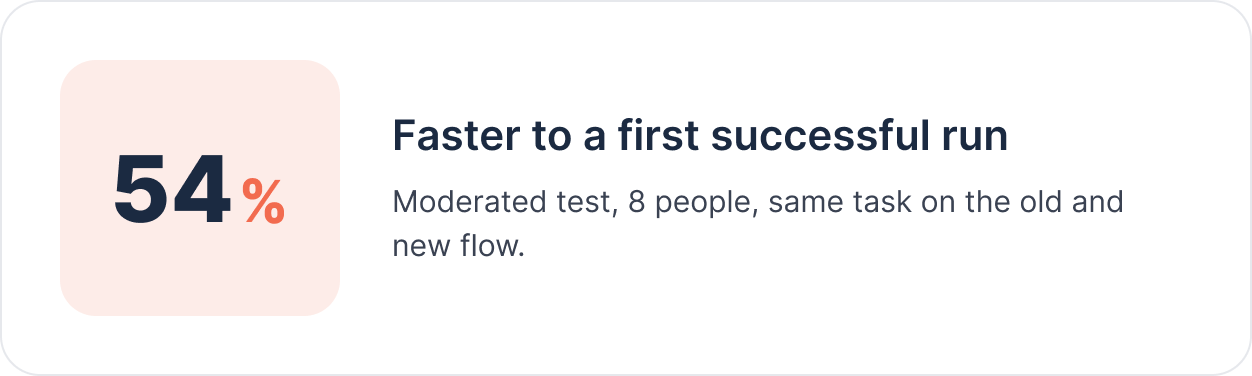
Each result ties back to a problem we set out to fix: finding a report (tags, preview, search), reusing one (saved reports as real objects), and repeating one (scheduling out in the open).